Help Center › Getting started
Staff logins and roles
Give every person their own login. Then each bill shows who made it, and each person only sees what their role allows.
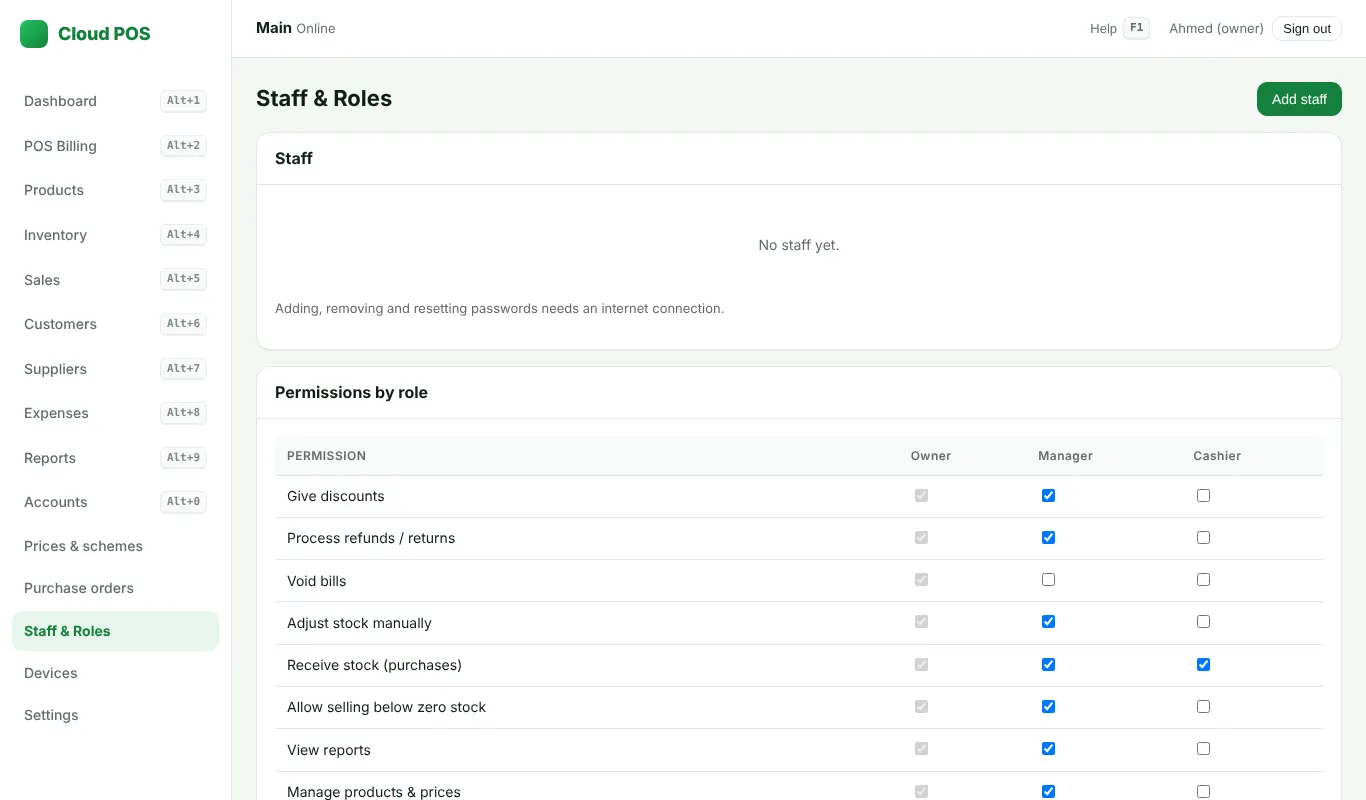
Add a staff member
- Owner: open Staff & Roles → Add staff.
- Type the name, a login name (no spaces), a password (8 or more characters) and pick the role.
- Save. Give the login name and password to that person.
Roles
- Owner: everything, including staff and settings.
- Manager: daily work and reports, as the owner allows.
- Cashier: billing only. Reports, Settings and Staff are hidden and also blocked on the server.
- Sales officer (distributors): only the phone app for orders and cash. See Booked orders.
Forgot a password
The owner opens Staff & Roles, picks the person and sets a new password. If the owner forgets their own password, message us on WhatsApp.
Still stuck? Ask us on WhatsApp: we reply quickly.
Updated 25 October 2026