Help Center › Billing
Make a bill
Making a bill takes a few key presses. You never need the mouse.
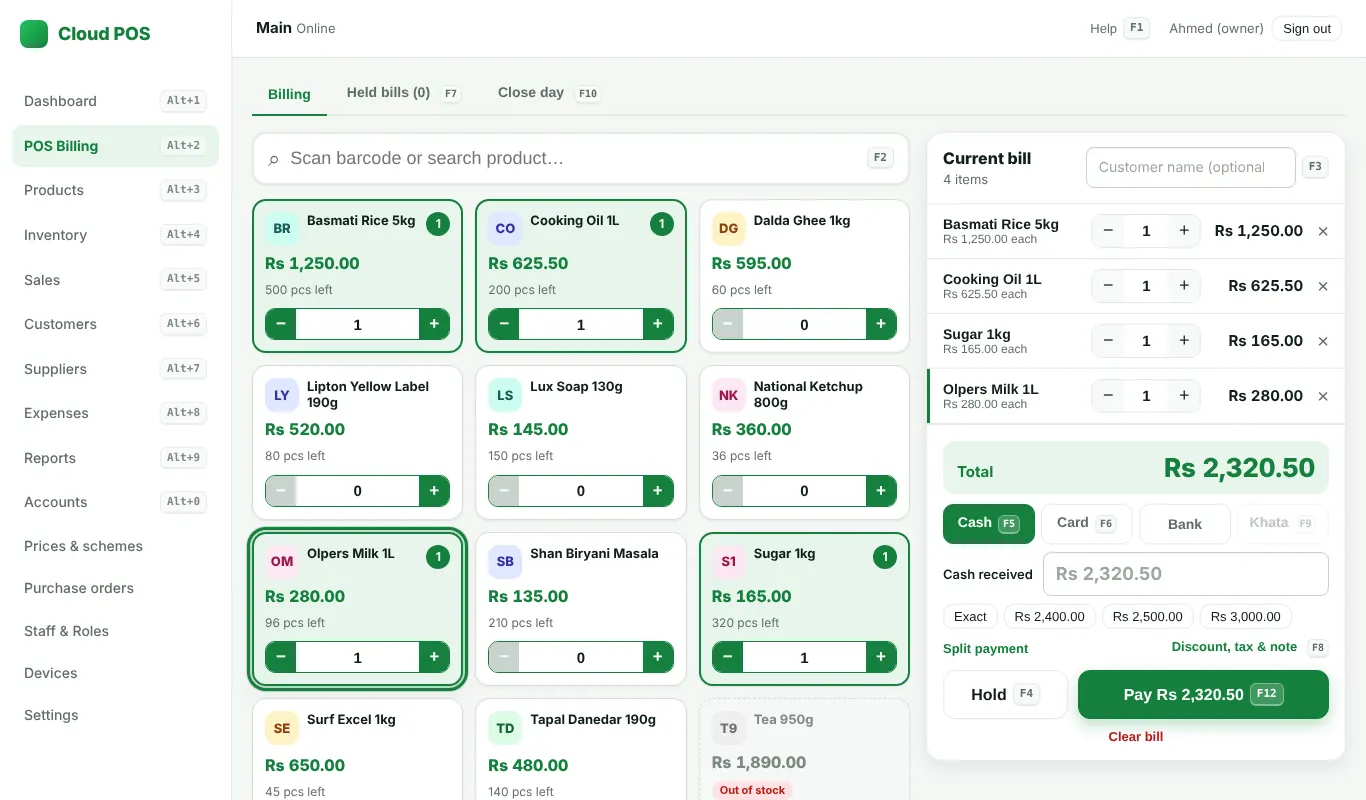
Steps
- Open POS Billing.
- Press F2, type the product name or scan the barcode, then press Enter. With the search box empty, the arrow keys move over the product cards and each Enter adds 1 piece.
- Change the quantity with + and −, or type it on the line. Ctrl + ↑ / Ctrl + ↓ pick a line; Delete removes it.
- Press F5 for cash and type the cash received (or click a quick amount).
- Press F12 to finish. The change to return is shown. Press Enter to print the receipt, Esc to close it.
Other payments
- F6 card, F9 khata (credit), F11 JazzCash / Easypaisa (see JazzCash and Easypaisa QR).
- Split payment: part cash, part card or khata.
- F8: discount, tax and a note on the bill.
Out-of-stock products cannot be added. A bill you are making is kept even if the power goes or the app closes.
Still stuck? Ask us on WhatsApp: we reply quickly.
Updated 25 October 2026